


Welcome
Welcome to Marshall University’s Herd Academy – your gateway to unlocking potential and exploring new opportunities. Designed for high school students, Herd Academy offers dual enrollment programs as well as online and on-campus courses for early entry students. These courses blend rigorous academics, personalized support, and the excitement of college life to help you take the next step in your educational journey.
Herd Academy is expanding opportunities for high school students in the Kanawha Valley. Beginning fall 2025, students from Kanawha County Schools will have the opportunity to take college-level classes at Marshall’s South Charleston Campus.
Who can enroll?
Herd Academy is open to motivated high school students who meet academic eligibility requirements. Whether you’re aiming to explore a potential major or get a head start on general education requirements, Herd Academy is designed for students like you.
Herd Academy Programs


Request Info
Complete this form to request more information about Marshall University’s Herd Academy and to be added to our mailing list for updates about the program.

A Head Start on a Calling
From high school to med school—Tristan Hornbuckle is making big moves! After earning 30 college credits through the Herd Academy, Marshall’s dual enrollment program, the Huntington High grad is heading to campus this fall with a spot in the prestigious BS/MD program.
With a passion for orthopedic medicine and a head start on his academic journey, Tristan is living proof that starting early pays off.

Dual Credit Opens Early Pathways to College Success
By blending high school and college coursework, dual credit programs like Herd Academy provide students with a unique advantage—earning their degrees faster and saving money.
Anna-Kay Dean participated in dual enrollment courses while a senior at Spring Valley High School.
Fast-track to success
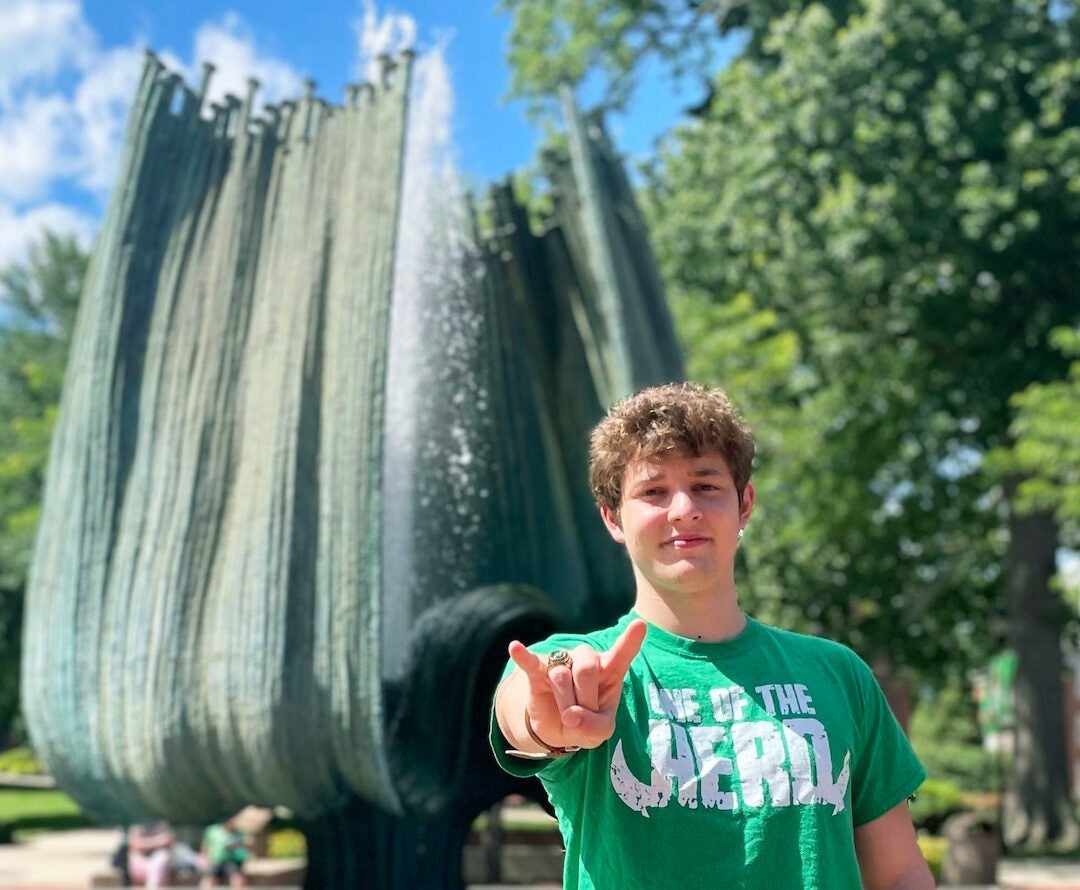
Thanks to dual enrollment courses, Christian Perez began his freshman year at Marshall with a full year’s worth of college credit. This head-start helped him to graduate with a Bachelor of Business Administration in finance at the age of 19.