

Digital Accessibility for Faculty
Digital Accessibility and Course Design
Digital accessibility is an ongoing process of continuous improvement, not a one-time task. Proactive, intentional changes to course materials can make a meaningful difference in how students access, navigate, and engage with learning.
Marshall University is committed to providing accessible digital learning experiences and must comply with ADA accessibility requirements for meeting Web Content Accessibility Guidelines (WCAG) 2.1 AA, such as adding alternative text to images, providing accurate captions to videos, formatting headers in documents, tagging PDFs, and using descriptive hyperlinks.
As you create and update course content, use the resources below to incorporate accessibility practices into your workflow.
Micro-Habits for Digital Accessibility
Run regular Ally accessibility reports to track progress and prioritize accessibility fixes.
Use native accessibility checkers as you create documents, slide decks, and other course materials.
After a course copy, delete unused files and use development shells for instructional materials to avoid creating unnecessary remediation.
Use remediated PDFs only when necessary. When possible, replace PDFs with a link to the original source or more accessible formats, such as Word or Blackboard documents. Request accessible materials from publishers.
Center student experience in accessibility decisions. Proactively design with a UDL lens. Document your efforts when more context or professional judgment is needed.
Digital accessibility is an ongoing process of continuous improvement. Review resources, watch for training opportunities, and reach out to the Design Center, MUIT, and your College Accessibility Liaisons as needed.

Ally Course Accessibility Report
Not sure where to start? Watch the video to learn how to find your course’s accessibility score and start with the easiest fixes. The Ally accessibility report in Blackboard can help you prioritize your remediation efforts and focus on continuous improvement, but a perfect score is not equivalent to compliance. Digital accessibility standards also require human judgment.
Run your Ally accessibility report and gauge your progress using the scores below. Focus on progress over perfection.
Ally Accessibility Progress Guide
Run your Ally Accessibility Report and use the guidance below to identify your next steps for making your course more accessible.
90% and above
- What it usually means: Most automated issues are resolved. What’s left are usually complex PDFs, links to external content, or items only a person can judge.
- Next steps: Shift from raising the score to verifying and maintaining it. Confirm that linked content and third-party materials (not scanned by Ally) are accessible. Respond to student-reported barriers. Build accessibility and UDL into your workflow so new content starts as accessible.
75-89%
- What it usually means: You’ve made strong progress and resolved many common accessibility barriers. Remaining issues are often concentrated in a smaller set of files or content types.
- Next steps: Work toward 90% by focusing on high-impact issues such as document images, headings, and slide decks. Replace problematic PDFs with links to open-access sources or convert PDFs you own to Blackboard docs.
60-74%
- What it usually means: Many of the remaining issues are repeated across course materials, which means a few targeted improvements can have a significant impact.
- Next steps: Focus on making measurable progress toward the next level by prioritizing required content, starting with the easiest fixes, such as auto-generated alt text and auto-generated PDF tags. Delete unused files and move materials students do not need to development shells. Share discipline-specific challenges with your college accessibility liaison.
Below 60%
- What it usually means: The course likely contains a high volume of complex content that has not yet been reviewed for accessibility or includes complex materials that require additional time and expertise to remediate (STEM content, musical scores, complex diagrams).
- Next steps: Begin with the content students rely on most: required readings, assignments, assessments, and weekly learning materials. Focus on completing one module or unit at a time rather than trying to address everything at once. Document your efforts when more context is needed to show your progress. Share discipline-specific challenges with your college accessibility liaison.
Tool Tutorials
Run your Ally accessibility report (go to your course — find Details and Actions menu — click View organization and institution tools — click Accessibility Report). Start with the easiest fixes. Ally can:
- auto-generate alt text for images
- auto-generate tags for PDFs
- OCR PDFs
- flag header format, broken links, scanned PDFs, color contrast issues, and missing alt text
Accessible Blackboard Document: Learn how to use accessibility features while creating a document.
Accessible vs. Not Accessible Example: Learn the elements that improve the accessibility of a Blackboard document.
Convert a file to a Blackboard Document: Learn how to convert a PDF or Word doc to an editable Blackboard document.
Ally Microlearning Videos: Learn about other accessibility quick fixes.
PDFs need to be tagged so that assistive technology can process them as text rather than a series of blank images. But before you remediate, consider whether another format is a better option:
- Replace PDFs of articles with a link to the original source. This supports copyright as well as accessibility. If you have permission to use the article, request an accessible digital version from the publisher.
- For PDFs you own or create, consider using Word or Blackboard documents instead. These are generally easier to make accessible. You can also convert a PDF of your own content to a Blackboard doc (avoid doing this with articles/files that you do not own for copyright purposes).
- Avoid printer scans whenever possible. These are difficult to tag accurately.
Still need the PDF? While PDF remediation improves accessibility, some PDFs cannot be made fully accessible because of their format or content. Here are your options at Marshall:
- Blackboard Ally can OCR and auto-tag PDFs directly in your course.
- AI PDF Remediation Tool can auto-tag PDFs and generate a more accessible version.
- Adobe can auto-tag PDFs plus give you control over editing tags, reading order, and alt text. Watch the Adobe Scan and OCR tutorial.
Email MUITTraining@marshall.edu for help with the Remediation Tool or Adobe. Email onlinelearning@marshall.edu for help with Blackboard Ally.
As you create or revise PowerPoint slides, use PowerPoint’s Accessibility Checker to help identify and fix common accessibility issues. Here are some common accessibility standards in slide decks:
- Slide titles: Every slide should have a formatted title or header
- Layout & reading order: Formatted layout; reading order is logical (use templates to help with this)
- Image Alt Text: Informative images have alt text; decorative images are marked decorative
- Color & contrast: Text has appropriate contrast; and meaning is not conveyed by color alone
- Text & fonts: Readable fonts, adequate size
- Links: Use hyperlinks–link text describes where it goes (not “click here”)
- Tables: Used only for data; header rows identified; simple structure
- Media: Videos are accurately captioned
Apply accessibility practices to documents as you create them. In Word, use the Accessibility Checker. In Blackboard, click on the Ally indicator for accessibility guidance.
Format headings: Use heading hierarchy (highlight your section name and select Heading 1, Heading 2, etc.) to organize content and direct reading order. You can still adjust font and color after you have selected the heading style.
Check color use: Ensure sufficient color contrast. Use additional cues (e.g., text labels, patterns) to supplement color-coded information.
Use alternative text for images: Provide descriptive alt text for images so that screen readers can convey the image’s content. Mark images that do not contribute to meaning as Decorative.
Add meaningful hyperlink text: Avoid generic text like “click here.” Use descriptive text that clearly indicates the destination of the link.
Use plain language: Use clear and direct language to convey information, especially in titles and headings.
Format table headers: Use table headers to help screen readers understand the table’s structure.
Accessible videos have accurate captions and audio descriptions. Use auto-generated captions and check for accuracy. When filming videos, include audio descriptions of visual content.
Learn about EchoVideo Transcriptions and Closed Captions.
The following prompts are intended to support accessible‑by‑design content creation. Copilot provides guidance, but final accessibility responsibility remains with the document’s author.
Alt Text Prompts
- Explain a concept image: This slide contains an image illustrating the water cycle. Write alt text that helps a student understand the scientific concept being taught, not just what the image looks like.
- History course image: Create alt text for this historical photograph. Focus on details that are relevant to the lesson about the Civil Rights Movement.
- Business course infographic: Write alt text for this infographic comparing market share among competitors. Summarize the key takeaway students should learn from the graphic.
STEM and Technical Content
- Physics diagram: Describe this force diagram for a student using a screen reader. Focus on the relationships between vectors, labels, and equations.
- Biology figure: Generate alt text for this cell structure diagram. Emphasize the parts students need to know for the lesson.
- Chemistry illustration: Write alt text for this reaction pathway figure, focusing on the sequence of chemical changes.
- Engineering schematic: Describe this engineering diagram in language that supports student learning rather than visual appearance.
Headings and Document Structure
- Create heading structure: Review these lecture notes and suggest an accessible heading structure using Heading 1, Heading 2, and Heading 3 styles.
- Check organization: Identify places where section headings would improve navigation for students using screen readers.
- Convert formatting to headings: This document uses bold text for section titles. Identify section titles and format them with official heading styles .
Meeting Digital Accessibility Expectations
Digital accessibility means designing and sharing digital content so that all people, including those with disabilities, can access, understand, navigate, and interact with it independently. At Marshall University, digital content is expected to meet WCAG 2.1 Level AA standards.
About WCAG
The Web Content Accessibility Guidelines (WCAG) are the international standards most organizations use to determine whether digital content is accessible. WCAG is organized around four principles known as POUR:
- Perceivable: Can everyone perceive the information, regardless of how they access it?
- Operable: Can everyone navigate and use the content?
- Understandable: Can users understand the content and what they are expected to do?
- Robust: Will the content work reliably with assistive technologies?
Key Digital Accessibility Standards for Faculty
The most common digital accessibility standards to be aware of when creating and remediating digital content include:
- Adding alternative text (alt text) to images
- Formatting headings with styles (Heading 1, Heading 2) so assistive tech can recognize them
- Providing captions for videos and other multimedia
- Using descriptive hyperlink text so users know where the link takes them (rather than “click here”)
- Ensuring PDFs are tagged and accessible
- Using sufficient color contrast between text and background and avoiding using color only for meaning
- Formatting tables with headers and structure
Marshall’s UPGA-14 Digital Accessibility Policy reflects a federal requirement with a firm date. Under Section 2.5, faculty and staff who share digital content “are responsible for ensuring their content (including third-party content) meets WCAG 2.1, Level AA standards by April 26, 2027, unless the content meets an exception as defined in Section 2.2.”
This includes any digital content you share with students via:
- Blackboard
- Teams
- Word or Google docs
- PowerPoint
- Publisher content
We use Blackboard Ally scores as a progress and prioritization tool, not to determine accessibility compliance. Compliance is based on providing accessible digital content consistent with ADA Title II and WCAG standards. Faculty should use Ally to identify and address barriers, prioritize high-impact content, and focus on continuous improvement.
When possible, aim for an Ally score of 90% or higher as a benchmark for progress while using professional judgment to evaluate and address any remaining accessibility issues. Wherever you are in your accessibility journey, use the Ally Accessibility Progress Guide above to guide your next steps for continuous improvement.
As with any tool, Ally has limitations. The following scenarios may require professional judgment or file replacement:
- PDF does not reach 100% after tagging/OCR.
- Expectation: We recommend replacing this content with an accessible version. If that is not possible, ensure that the essential content of the item is accessible. For example, confirm that the accessibility score is lower due to decoration, non-essential content, or structural issues that do not impact essential content meaning.
- Ally flags PowerPoint color contrast.
- Expectation: Try remediating using PowerPoint’s accessibility checker. If color contrast is the only issue and this is not fixable in PowerPoint, confirm that color contrast meets accessibility standards.
- Unused files and content that Ally scans but is no longer in the course.
- Expectation: After copying courses, remove unused files (these are leftover files that no longer appear anywhere in the course). Use development shells to store content that students do not need to access.
- Ally quick fixes on items that still do not reach 100%.
- Expectation: We recommend replacing this content with an accessible version. If that is not possible, ensure that the essential content of the item is accessible. For example, confirm that the accessibility score is lower due to decoration, non-essential content, or structural issues that do not impact essential content meaning.
- Word, Adobe, or PowerPoint say the file is fully accessible with no issues, but Ally is still giving it less than 100%.
- Expectation: Confirm that the accessibility issue Ally is flagging does not apply to the essential content. Once you have confirmed they meet accessibility standards, consider linking to larger PowerPoints or Word files to save course storage and support live editing.
Digital accessibility proactively addresses barriers for many students, including students who have vision impairments, learning disabilities, hearing impairments, and neurodivergent conditions.
Digital accessibility is not just a technical requirement; it is closely tied to students’ sense of belonging. When students can access their course materials independently, they experience greater autonomy, confidence, and engagement–all of which support academic success. Marshall’s H.O.M.E. Framework integrates digital accessibility in Standard 6: Belonging.
One assistive technology that students may use is a screen reader. Watch Aaron Preece of American Foundation for the Blind, who has a vision impairment, navigate a Blackboard course with his screen reader.
Alt text is a brief, descriptive text that accompanies an image on a webpage or in a digital document. Screen readers announce this text, allowing users to understand the image’s content and purpose within its context.
- Include alt text when adding an image as part of the content design process.
- Make the description concise.
- Consider the purpose, target audience, and context for the image.
- Mark “decorative” images that do not contribute information.
- If the image includes text (e.g., a promotional flyer), include that information in the alt text or as a caption.
- If you share an image (e.g., a line graph or historical painting) in a video lecture, briefly describe it.
Tools that support alt text
- For images in Blackboard, use Ally’s recommendations and auto-generate description.
- For guidance on complex images, use the W3C’s Alt Decision Tree.
- For accessible formulas and equations, use Blackboard’s Math Editor.
- For auto-generating alt text for specific purposes, prompt Copilot (see “How can Copilot help with accessibility?).
- Follow discipline-specific guidelines when possible.
- Author Guidelines for Preparing Accessible Mathematics Content: Contains guidance for how to create appropriate alt text for STEM formulas, codes, tables, and figures.
When course materials cannot be made digitally accessible due to the subject matter or assessment type, students may need to seek an EEAAP (Equally Effective Alternate Access Plan) through the Office of Accessibility and Accommodations. Marshall’s Administrative Procedure: Student-4 addresses the process for requesting textbooks and other course materials in alternate formats, such Braille, tactile images, large print, audio, etc.
Accessibility work is different across the academic disciplines. Some academic fields offer specific guidance for meeting digital accessibility standards in specific contexts:
- Accessible Math Guidance from the American Mathematical Society
- Accessible Chemistry Guidance from the American Chemical Society
Reach out to your College Accessibility Liaison if you have subject-specific challenges or want to share accessibility resources from your discipline.
For regular course assignments that are submitted only to the instructor, students are not required to meet full WCAG 2.1 AA accessibility standards. Faculty are encouraged to model accessible design and offer guidance, but student coursework that stays within the classroom is not held to the same compliance expectations as official university content.
However, when student work becomes public‑facing, it does need to comply. This includes:
- Community or public‑facing digital projects
- Websites or media published on behalf of a university office or program
- Thesis and dissertation publications deposited in the library or other public repositories
- Any student‑created content shared broadly outside the course context
Also, students who are employed by Marshall are expected to follow accessibility standards when creating content for university offices, research, or official publications, aligning with the university’s responsibility to model accessible practices.
In short:
- Private course assignments: No, students do not need to meet WCAG/ADA Title II standards.
- Public‑facing student work: Yes, accessibility standards do apply.
Students can find resources on accessibility on the Digital Accessibility and UDL page.
Get More Help
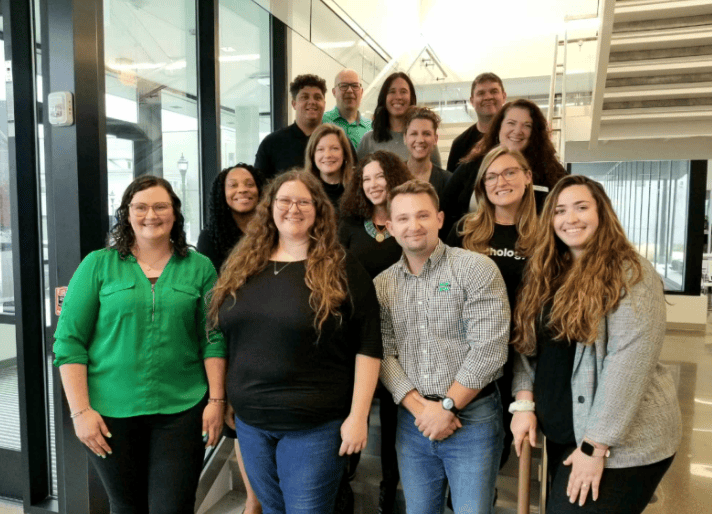
Marshall’s Design Center can assist with accessibility related to Blackboard, Ally, and course design. Book a designer or email them at onlinelearning@marshall.edu.
MUIT can assist with accessibility related to Microsoft Office, Adobe, and Copilot. Email them at MUITTraining@marshall.edu.
College Accessibility Liaisons can assist with accessibility coaching, connecting you to the right resources, and raising awareness about discipline-specific challenges.