Get in the Habit
What if designing accessible Blackboard documents became a seamless part of your workflow, enhancing learning for all and saving you time? It’s more than your Ally Accessibility Score; it’s about proactive attention to accessibility best practices. This tutorial will show you how to apply digital accessibility to document creation in Blackboard.
How to Do It
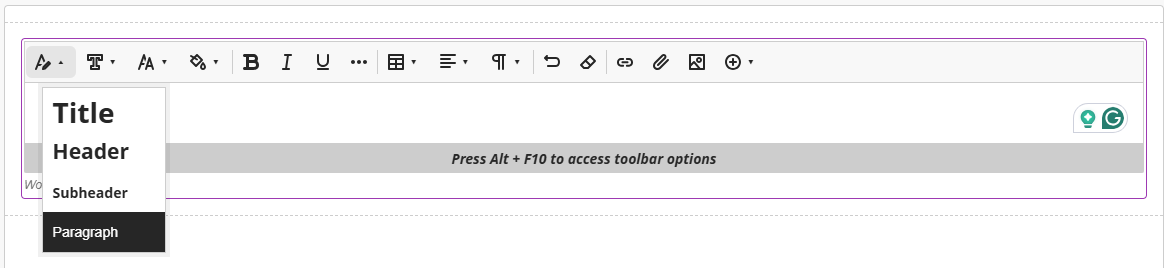
Create a Blackboard document and use the Content Editor to format headers in order. Begin with Title format, then Header, then Subheader to convey section names. Use Paragraph for any plain text. Watch our video tutorial on Structuring Content in Blackboard.
Blackboard’s Content Editor
Why This Habit Matters
Ensuring your Blackboard Ultra documents are accessible is crucial for providing an equitable learning experience. Accessible documents reduce barriers for students using assistive technologies like screen readers, improve readability for everyone, and minimize the need for individual accommodations. By proactively designing for accessibility, you align with Marshall University’s commitment to digital accessibility, the H.O.M.E. Framework, and the principles of Universal Design for Learning (UDL), creating a more impactful environment for all.
Applying Accessibility Practices to a Blackboard Doc
The following practices are based on WCAG digital accessibility standards.
Format headings
- Headings: Use built-in heading styles (Title, Heading 1, Heading 2, etc.) in your content editor within Blackboard Ultra to create a logical hierarchy. Screen readers use these to navigate.
- Lists: Utilize numbered and bulleted lists to chunk information.
- Paragraphs: Keep paragraphs concise and use appropriate spacing. Avoid using multiple spaces or tabs for indentation; instead, use paragraph formatting options.
Check color use
- Sufficient Contrast: Ensure there is adequate color contrast between text and background in images. Blackboard purposefully limits color options to support accessibility.
- Color for Emphasis: If using color to highlight information, also use another visual cue (e.g., bolding, underlining, or an icon) to ensure the information is accessible to individuals who are colorblind or using black-and-white displays. The color options for text in Blackboard are limited in response to accessibility concerns.
Add alt text to images
- Descriptive Alt Text: Provide concise and descriptive alternative text for all meaningful images, charts, and graphs. This allows screen readers to convey the visual information. When using Blackboard’s stock images or image generation, alt text is often automatically generated and can be edited.
- Decorative Images: For purely decorative images that convey no information, mark them as decorative.
Use hyperlinks with descriptive text
- Descriptive Link Text: Use clear, descriptive link text that indicates the purpose or destination of the link (e.g., “Learn more about WCAG guidelines” instead of “Click here”) so that users navigating with assistive technology know where the link will take them.
- Avoid URLs as Text: Do not paste raw URLs as link text. Since screen readers will read the URL letter by letter, this distracts from the actual content.
Use easily searchable titles and headings
- Clear and Concise: Use semantic titles that clearly convey the content of a document or section.
Format table header rows
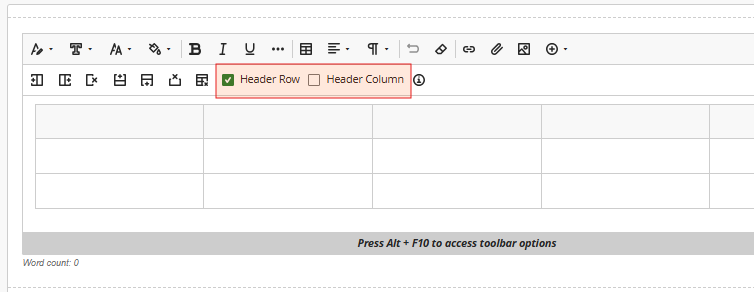
- Identify Header Rows/Columns: For data tables, check Header Row and/or Header Columns to allow screen readers to understand the relationship between headers and data cells.
AI Tip
Check your Ally Accessibility Score to test the accessibility of your Ultra documents. Ally can help you fix issues with headings and color contrast, as well as auto-generate alt text for images.
Additional Resources
- Ultra Documents – Learn more about how to create dynamic Ultra documents with a mixture of text, attachments, and multimedia.
- Marshall Online: Digital Accessibility and UDL: This page contains accessibility information, resources, and services at Marshall University. You can also explore other habits that support digital accessibility and UDL in our Designing for All, Habit by Habit Series. Since accessibility laws are dynamic and nuanced, these recommendations (updated Aug. 2025) may not reflect the latest updates and should not replace legal advice. For legal questions about accessibility at Marshall University, reach out to the Office of Accessibility and Accommodations.
Designing for All, Habit by Habit Series
This is a part of Marshall Online’s “Designing for All, Habit by Habit” initiative, our way of making accessibility a core part of the workflow. We believe that small, consistent actions – practical design habits – lead to big, positive changes over time. By incorporating digital accessibility standards and UDL principles, we’re building a more inclusive digital experience, one habit at a time.