Technology Onboarding Guidance
On-Boarding Guidance
1. Receive your MUID Number
If you’ve received your MUID number from Marshall University, your information has been successfully added to the university’s database. Your MUID (Marshall University ID) is a unique identifier that connects you to a variety of campus services and resources.
Please note: your MUID is not the same as your computing user account credentials. It serves as an identification number, not a login username or password.
2. Understand Account Activation
- First-Time/New-To-Marshall Students: Account creation begins after admission to the university and Orientation registration is required to complete class registration.
- Students Admitted After the Fall Term Begins/Online Students: Account creation begins after admission to the university and is finalized once you have completed course registration. For assistance or getting started with course registration, contact your advisor.
Note: To ensure timely access to university communications, systems, and services, activate your account as soon as possible after admission and complete all required registration steps based on your student status (e.g., first-time, returning, or mid-year transfer student).
- Faculty and Staff: The process to create a Marshall University user account and email address begins approximately 24 hours before the employee’s official start date.
Your University Account
Your Marshall University email address will follow the format username@marshall.edu and serves as your primary method of communication with the university. Your Marshall account credentials provide access to a wide range of campus technology resources and services, including email, Microsoft 365, myMU, Wi‑Fi, software applications, online learning tools, cloud storage, printing services, computer labs, library resources, and other university-supported systems.
Account Activation Considerations
If you previously attended or worked at Marshall University as a student, employee, or alumnus, your account may already exist but be inactive. Contact the Marshall University IT Service Desk and provide your MUID number to verify your account status. If manual account activation is required, additional processing time may be needed before access is available.
If you are a new student, faculty member, or staff member and attempt to activate your account before you have been officially admitted or before your official start date, your account may not yet be ready. In these cases, please wait until the appropriate eligibility date and try again.
Students: Must complete class registration before you are able to Activate your Mobile ID (Step 3).
3. First Time User Portal
If the Account Activation Considerations above do not apply to you, use the First Time User Portal to set up your account once you have been admitted to the university or, for faculty and staff, on or after your official start date. The portal will guide you through creating a password and enrolling in Multi-Factor Authentication (MFA). Visit the First Time User Portal to begin the account activation process.
First Time UserWhat is Multi-Factor Authentication?
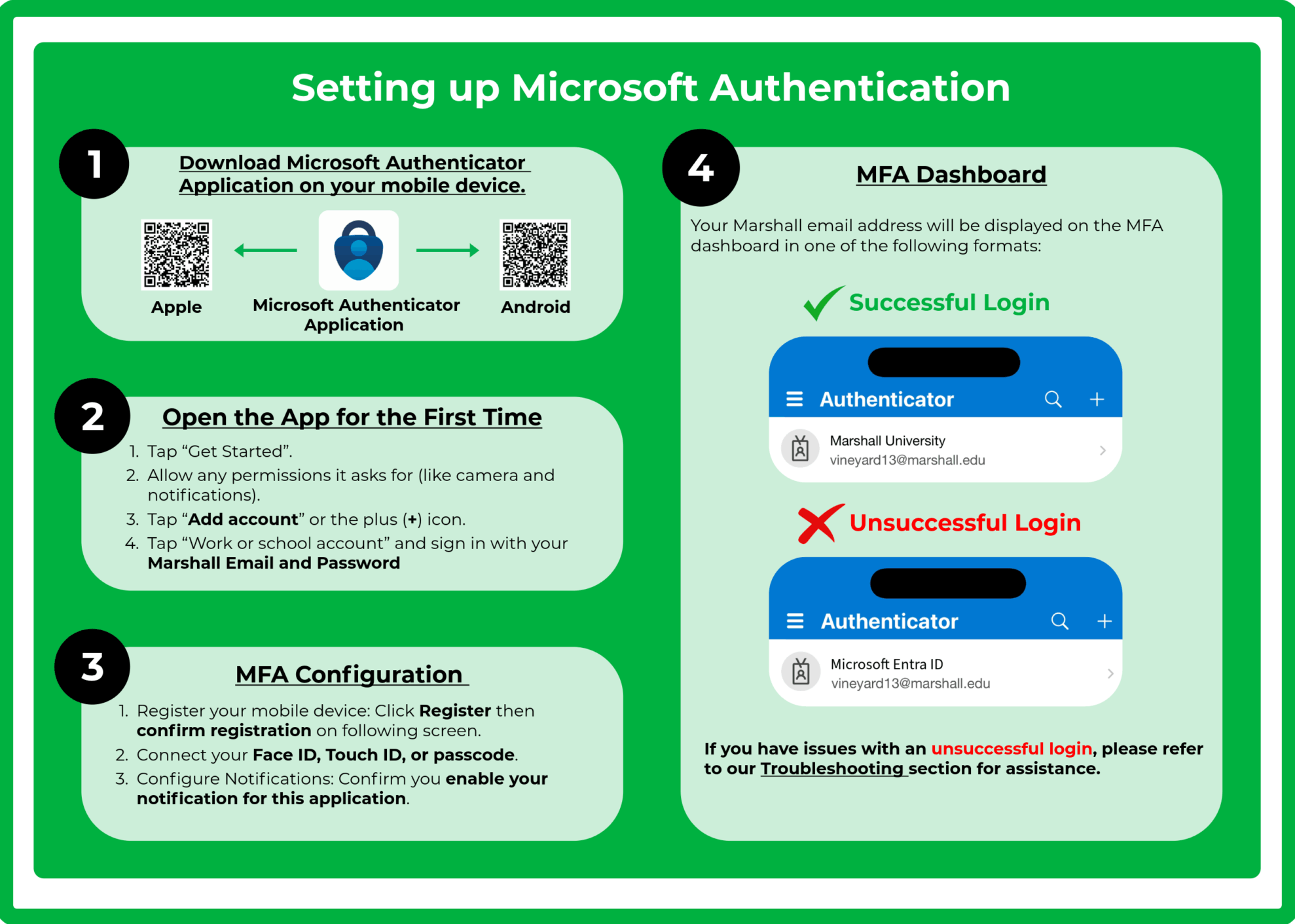
Multi-Factor Authentication (MFA) is a security measure used to protect sensitive systems and data by requiring users to verify their identity using more than one method of authentication. This adds an extra layer of security beyond just a username and password. MFA helps safeguard sensitive systems such as email, student records, and financial data, reduces the risk of unauthorized access, and ensures compliance with data protection regulations like FERPA and HIPAA. It is commonly used when accessing university portals, learning platforms, and remote services.
Setting up MFA Application
Obtaining your Identification
ID cards are disbursed both physically and for mobile devices that support NFC capabilities (Example: Apple Pay/Google Pay capabilities). Please note that your Mobile ID will serve as your primary form of identification on campus. Students must be registered for classes in order to set up their Mobile ID.
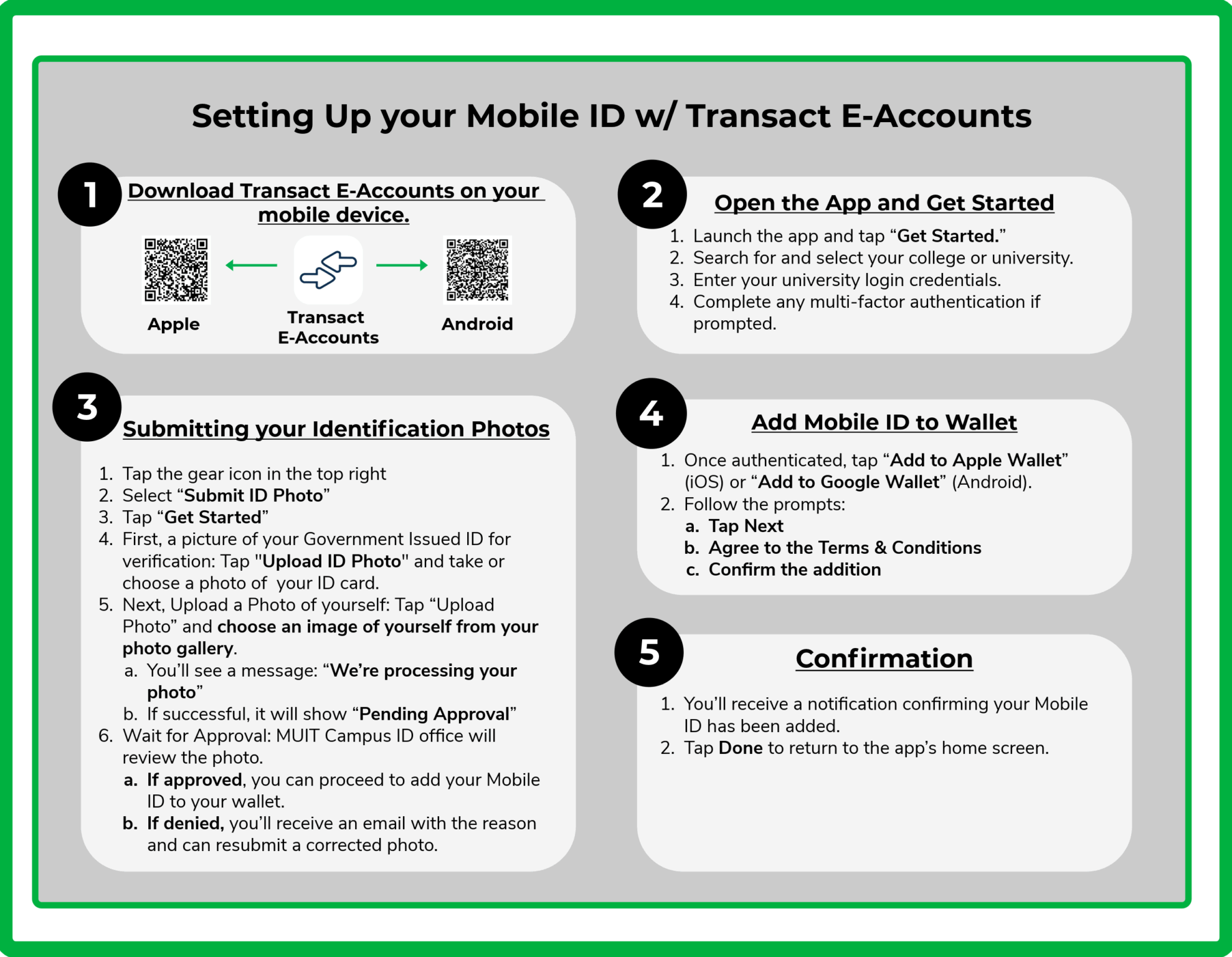
Setting Up your Mobile ID
Before setting up your Mobile ID, your account must be fully activated—this includes setting your password and configuring your Multi-Factor Authentication (MFA) method. Mobile Campus IDs also require a Transact E-Accounts setup to function properly.
Physical ID Cards
Photos and ID card printing for physical Campus IDs are handled in person at the MUIT Campus ID Office. Physical ID cards are issued only when necessary. If you require a physical ID, please contact the ID Office team.
Mobile ID GuideReceiving your University Machine
Each employee is assigned an Employee Position Number, which is tied to a specific university-issued device designated for that position. You will receive your assigned machine from your department leadership or Information Technology. These devices meet established standards to ensure you can perform your job duties efficiently and effectively.
Your direct supervisor is responsible for making a university-issued device available to you (for full-time employees only).
Staff/Faculty Checkout Machines
If your device requires operating system repairs or has sustained accidental damage, you may be eligible to check out a loaner laptop from the Marshall IT Service Desk, subject to availability. The MUIT Service Desk offers additional devices and peripherals for faculty and staff to check out as needed. These items may include:
- Webcams
- Mice
- Keyboards
- USB WiFi adapters
- iPads
Device Checkout
To learn more, reach out to our Marshall Service Desk !
Computer Requirements
MyMU serves as Marshall University’s central online gateway, providing students, faculty, and staff with convenient access to the tools, resources, information, and services they use most often. Through myMU, users can access academic and administrative resources, stay informed about university news and announcements, connect with campus communities, locate important links, and access technology support resources from a single, centralized platform. Designed to streamline the user experience, myMU helps members of the Marshall community quickly find the information they need and stay connected with university services throughout their academic and professional journey.
MyMU Overview
IT Service Desk
- Location: Drinko Library 141
- Phone: 304-696-3200
- Hours: Monday – Thursday 7AM – 11:30 PM
Fri 7AM- 5PM
Sat 10AM- 6PM (On call only)
Sun 1PM- 11:30PM
Campus ID Office
- Location: Drinko Library 1st Floor
- Email: campusid@marshall.edu
- Phone: 304-696-MUID (6843)
- Hours: Monday – Friday || 8:00 a.m. to 4:30 p.m.
MyMU Support Hub
Self-Service Support