Marshall is committed to delivering a reliable Wi-Fi experience for all campus users. While wired connections are recommended for devices that support them due to their superior speed and stability, Wi-Fi remains a convenient option for mobility. However, wireless performance can vary because:
- Shared Access: Wi-Fi bandwidth is shared among all users in the area.
- Peak Usage Times: Speeds may drop during high-traffic periods, especially late at night.
- Device Differences: Hardware and configuration can affect speed and consistency.
- Signal Positioning: Even the placement of your device’s antenna can impact performance.
MU HRL
The “MU HRL” network sits on the same technology as MU WiFi but is an offering specific to our HRL residents. This network allows devices that do not authenticate with a username and password the ability to join the network. MU HRL creates a User Defined Network (UDN) in your residence hall and is private to you and/or your roommate (if applicable). This network is the connection point for Game Consoles, TVs, Roku’s, and other smart devices and gives users the ability to connect visiting guests.
Lets get started!
HRL Registration Portal Login
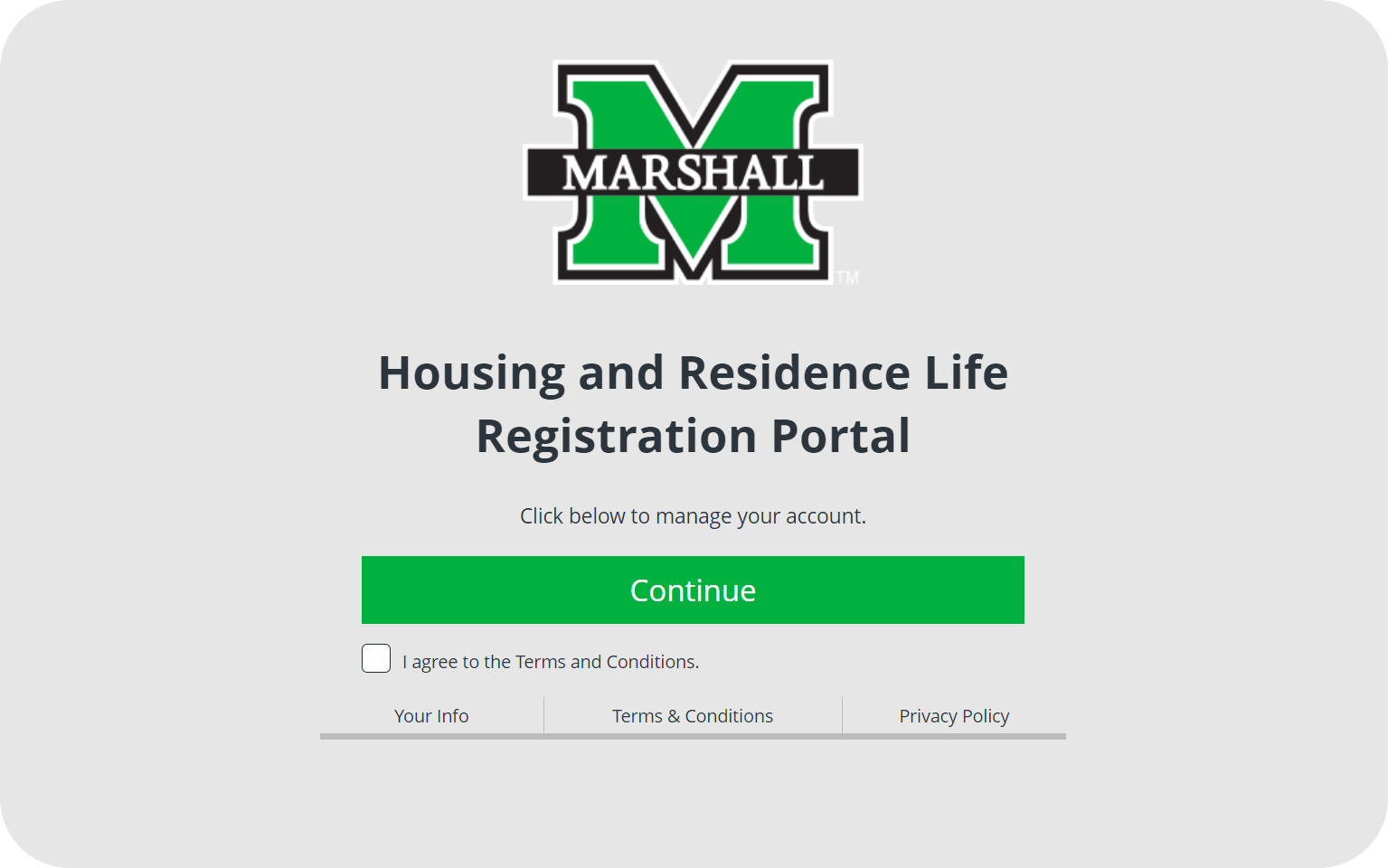
- On your web browser, navigate to marshall.splashudn.com/accounts/Marshall where you will review and agree to the Terms and Conditions, then press Continue.
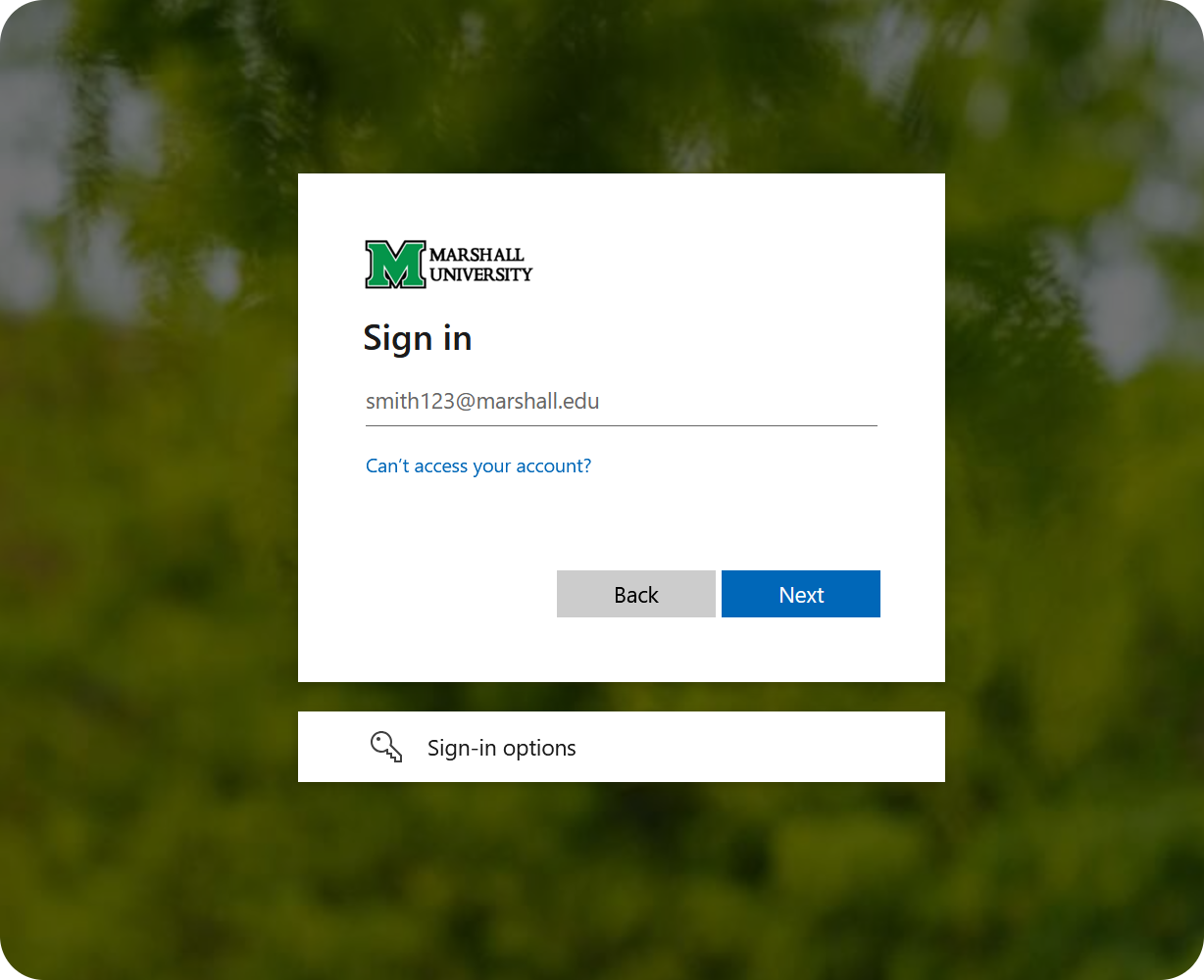
2. You’ll be directed to a webpage to Sign in with your Marshall U Email Address and Password.
3. Once you are successfully signed in, you will have access to your Wi-Fi registration portal where you can:
- Manage current devices
- Add new devices
- Access your Private Network Password
- Scan your QR code to securely add devices to your dashboard
Managing and Adding Devices
Each user will have a limit of 20 devices per account allowed when connected to MU-HRL. To add a device, you’ll need to provide the Wireless MAC address, Device Name, and can provide an optional description of the device. Once the Wireless MAC address has been successfully registered, then you are able to log into MU-HRL Wi-Fi network using your Private Network Password or QR Code.
**In order for your device to connect, you’ll need to ensure MAC randomization is turned off for the network.

Private Network Password and QR Code
Your Private Network Password is a randomly generated password that will consist of 8 to 15 characters. The generated password can be used to connect to device that already have a record in your Registration Portal. If needed, you are able to receive a new random password by clicking Generate Password.
**Devices already listed under Manage Device(s) will stay connected if you generate a new password.
Your QR code listed on your dashboard is specific to your portal. This QR code can be used to add enabled devices to MU-HRL. Scan the code with your device and follow your on-screen prompts.
**In order for your device to connect, you’ll need to ensure MAC randomization is turned off for the network.
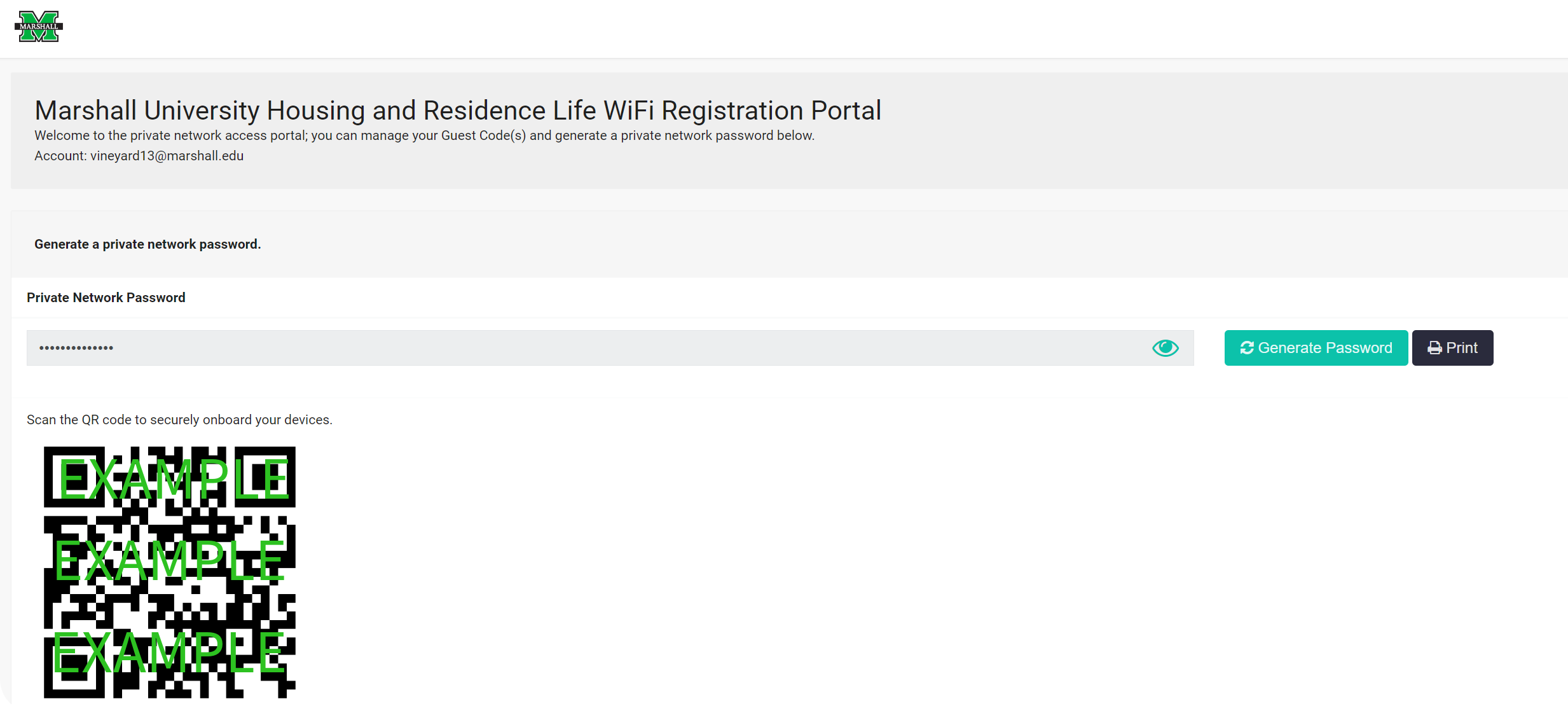
Keep this portal open: Keep the portal open until you have registered all of your devices in your Manage Device(s) section.
Returning HRL residents and students
Our security certificates expire annually; so if you are returning to campus from a previous semester you may have to reconnect to the WiFi network and accept the new authentication certificate. AVOID those data overages. You will also have to register your personal devices in the new UDN portal. If you aren’t automatically connected, please remove or forget the MU WiFi network and scroll down to How do I connect my Device: to reconnect.
Incoming students
Most of you have already connected to the MU WiFi network during orientation but if you are having issues connecting or seeing other personal devices that you have registered; please remove or forget the MU WiFi network. You will now have to reconnect; scroll down to How do I connect my Device:
If you are experiencing issues with staying connected to the WiFi or simply just having computer issues. We recommend that you check with the manufacturer of your device and update your BIOS and system drivers to their preferred versions.
How do I connect My Device(s)
1. Open Settings: Tap on the Settings app on your iPhone.
2. Select Wi-Fi: Tap on the Wi-Fi option to see the list of available networks.
3. Tap the MU WiFi Network: Enter your username (user@marshall.edu), enter your password, and accept the ISE-EAP certificate.
*Note: If you are already connected to this network; skip the authentication step and go to disable MAC randomization.
4. Disable MAC address Randomization: Once connected, tap the information icon (i) next to the network you’re connected to.
5. Disable Private Address: Toggle the switch next to “Private Address” to turn it off. Your iPhone will now use that MAC address for this network.
6. Document MAC Address: Store this MAC address as you will need to register it in the portal when creating your private network.
7. Register Device: Add the documented MAC address from above to your UDN registration portal.
1. Open Settings: Tap on the Settings app on your iPhone.
2. Select Network & Internet: Tap on Network & Internet.
3. Tap on Wi-Fi: Select Wi-Fi to see the list of available networks.
4. Tap to MU WiFi: Enter your username (user@marshall.edu) and your password; and accept the ISE-EAP certificate.
*Note: If you are already connected to the network, skip to the disable MAC randomization step.
5. Disable MAC address Randomization: Once connected, tap the information icon (i) or the gear icon next to the network you’re connected to.
6. Advanced Settings: Scroll down and look for the “Advanced” section.
7. MAC Address Type: Tap on “MAC Address Type”.
8. Select Use Device MAC: Choose “Use device MAC” to disable MAC address randomization for that network.
9. Document MAC Address: Store this MAC address as you will need to register it in the portal when creating your private network.
10. Register Device: Add the documented MAC address from above to your UDN registration portal.
1. Open Settings: Click on the Start menu and select the Settings gear icon.
2. Select Network & Internet: In the Settings window, click on Network & Internet.
3. Select Wi-Fi: In the left sidebar, select Wi-Fi.
4. Select MU WiFi: Enter your username (user@marshall.edu), enter your password, and accept the ISE-EAP certificate.
*Note: If you are already connected skip to Manage Known Networks.
5. Manage Known Networks: Click on “Manage known networks”.
6. Select a Network: Click on the network for which you want to disable MAC address randomization and then click on Properties.
7. Toggle Off Random Hardware Addresses: Under the “Random hardware addresses” section, toggle the switch to “Off”.
8. Document MAC Address: Store this MAC address as you will need to register it in the portal when creating your private network.
9. Register Device: Add the documented MAC address from above to your UDN registration portal.
1. Open System Settings: Click on the Apple menu in the top-left corner of the screen and select System Settings.
2. Select Network: In the System Settings window, click on Network.
3. Select Wi-Fi: In the left sidebar, select Wi-Fi.
4. Connect to MU WiFI: Enter your username (user@marshall.edu), enter your password, and accept the ISE-EAP certificate.
*Note: If you are already connected skip to Advanced Settings.
5. Advanced Settings: Click on Advanced or Details at the bottom of the Wi-Fi settings.
6. Disable Private MAC Address: Find the option for using a private MAC address or randomized MAC address and uncheck it or toggle it off. This option might be listed under Privacy or Security settings within the Wi-Fi network settings.
7. Document MAC Address: Store this MAC address as you will need to register it in the portal when creating your private network.
8. Save and Apply: Click on OK or Apply to save your changes.
9. Register Device: Add the documented MAC address from above to your UDN registration portal.
Instructions to be posted!
Instructions to be posted!
If your device wasn’t listed above, most likely you will need register it in the device portal and connect to the MU HRL Network via wired or WiFi. These devices include but are not limited to Game Consoles, TV’s, Roku’s, Printers, steaming devices and lighting.
How do I find the MAC address for my personal device for registration?
The MAC or Physical Address is a 12-character alphanumeric unique ID specific to your device. For example: A1:B2:C3:D4:E5:E6
· If you have trouble finding the device MAC address, it can be commonly located in the Network settings under the wired or wireless (WiFi).
· Alternatively, reach out to the Device Manufacturer website for assistance locating the Wireless MAC address.
You may also connect your device to the wired network via the access point it your residence hall room. The 3 ports on the right are usable ports; LAN1 LAN2, and LAN3. The other 2 should be blocked off but if they aren’t, please don’t connect to them.
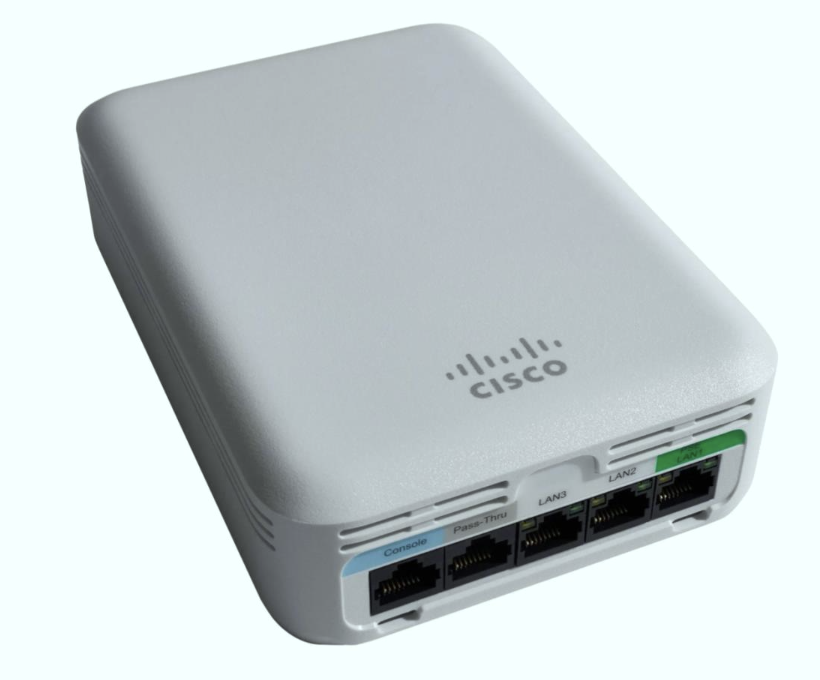
You will need register it in the device portal and connect to the MU HRL Network via wired or WiFi.
How do I find the MAC address for my personal device for registration?
The MAC or Physical Address is a 12-character alphanumeric unique ID specific to your device. For example: A1:B2:C3:D4:E5:E6
· If you have trouble finding the device MAC address, it can be commonly located in the Network settings under the wired or wireless (WiFi).
· Alternatively, reach out to the Device Manufacturer website for assistance locating the Wireless MAC address.
Network Issues? Start Here
Marshall provides wireless network services for Marshall University students, faculty, staff and guests.
- MU WiFi: Secure Wi-Fi to be used by students, faculty, and staff
- MU_Guest: Open Wi-Fi network for guests and visitors
- eduroam: Secure Wi-Fi network that can be used by students and staff at Marshall University when they travel to other participating universities
- MU-HRL: Students living on campus can connect media devices like Apple TV and Roku and gaming devices. Instructions for registering devices on marshall.splashudn.com/accounts/Marshall/.
It is important to understand how to set up Wi-Fi for use at home, at school, and in public places. A safe configuration is one where your data will remain private and protected when transmitted via wireless. Marshall University provides a safe configuration for MU WiFi that can be used by all students, faculty and staff. This network requires clients to sign in with their university username and password.
Marshall University Residence Hall rooms are wired with high-speed Ethernet connections,
as well as WiFi wireless access enabling high-speed data communications through network jacks
found on wall plates in every room. The Huntington campus and all Residence Halls have “Pervasive” WiFi
providing coverage and capacity to all residents.
Creating and using separate personal WiFi networks at MU causes interference with the wireless network and results in diminished quality and reliability. Therefore, creating and using personal networks and routers are not permitted.
Using the Right Connection?
Make sure you are connecting to MU WiFi using your MUNet Username and Password. This is the WiFi network designated for our user community.
Old Password?
If you have changed your password, your device may have stored your old one. Try to re-enter your latest password. You may also need to “Forget This Network” first, and then reconnect to force the password change.
Did You Know?
Many computers have switches to turn Wi-Fi Off and On. You may have turned your Wi-Fi off by mistake, and a reboot will not fix that. Check your computer to make sure it’s turned on.
Non-Mobile Devices
The best experience for devices with built-in network jacks is Marshall’s wired network. Just plug in to the jack under your room’s WiFi access point.
Device Specific Instructions
Visit our How to Connect page.
Still Not Connected?
Turn your Airplane Mode ON and the OFF again to recalibrate your connection!
Moving through campus, your device will connect to different access points. If you lose connection, try this step again.
Is your device software up to date?
Your device may not connect due to out-of-date drivers from and older OS. Make sure you are running the latest software. If you need assistance, contact the IT Service Desk.
Network Congestion?
Personal Access Points and Routers can cause slow or dropped connections. Try turning off your device or ask your neighbor to do the same while you check your connection.
Still Having Trouble?
Contact the MUIT Service Desk in person at the Drinko Library, 1st floor, by phone at 304-696-3200 or live chat below on this webpage for assistance